Friday, June 28, 2019

Stupid errors that took me more than 1 hour to solve

Here is my follows up on the original post here: https://blog.juliobiason.net/thoughts/things-i-learnt-the-hard-way/#code-reviews-are-not-for-style

The list will keep increasing day by day but hopefully i wont repeat any of the items here.

Soft-Hyphen Characters


https://en.wikipedia.org/wiki/Soft_hyphen

There was a request from my client to remove Soft-Hyphen character from a JSON.
A JSON use to render a page on Android and iOS.
Client did not specify the devices or OS, And I did not get the issue at first on Android.
But I could see some red-dot in JSON, I did a replace


replace({ '­':'', '­':'', '­': '' }) 

Sadly, It was not enough,
Took me some hours to find a solution here: https://stackoverflow.com/questions/10148184/php-check-if-string-contains-soft-hypen-and-replace-it/56885146#56885146

Even my friend told me that i should convert the U+00AD into a character and use that character to replace

And yes!, if you're checking the solution on StackOverflow, the answer is


$str = str_replace('­', '', $str);


And here was the diff on Stash


Throw Error in Promise.

What did i do?
I was trying to throw some error inside a Promise, but I forgot to put catch in the end of the end. My web server was hanging for several minutes before it responded.

function doAsync (){
  return new Promise( (resolve, reason ) =>{
      // do something to make error happens.
      if(error){
       throw new Error("ABC")
      }
     resolve("ok");
  });
}

For the code, we have two solutions. 1.1 Use resolve with the error.

function doAsync (){
  return new Promise( (resolve, reason ) =>{
      // do something to make error happens.
      if(error){
       return reason( new Error("ABC") );
      }
     resolve("ok");
  });
}

1.2 Use catch to return the error value.

function doAsync (){
  return new Promise( (resolve, reason ) =>{
      // do something to make error happens.
      if(error){
       throw new Error("ABC");
      }
     resolve("ok");
  }).catch(err => errorHandling(err))
}

Friday, March 1, 2019

Setup SSH with RSA keypairs

Firstly, you can easily remote to server with 
ssh your_username@server_address

But you can remove the annoying by being asked typing password many times, using RSA keypairs, it is also more secured than using password.


1. Creating a key pairs on Workstation


ssh-keygen -t rsa - b 4096

Add passphrase is recommended

To read your public key

cat ~/.ssh/id_rsa.pub

2. Uploading public keys to the Server


SSH to the Server

ssh your_username@server_address 

Create a file in .ssh/authorized_keys  and paste the public key into

you can do it from Workstation with one command using 

cat ~/.ssh/id_rsa.pub | ssh your_username@server_address 'cat >> .ssh/authorized_keys'

And change the permission

ssh your_username@server_address ‘chmod 700 .ssh; chmod 640 .ssh/authorized_keys’

From now we can ssh with being asked for password

ssh your_username@server_address

3. Turn off password authentication


On Server Machine

sudo vim /etc/ssh/sshd_config

Uncomment Passwordauthentication , change the value to No

And  restart ssh 

sudo systemctl restart ssh


Monday, January 21, 2019

When we need to use swap partition in Linux?

Recently i have an issue on my LightSail small instance which have 512MB of RAM,

I can not run react-script build on it

npm run build
Because of the issue: https://github.com/kitze/custom-react-scripts/blob/master/packages/react-scripts/template/README.md#npm-run-build-exits-too-early

So create a Linux swap is life saver.

Firstly, check if swap available :

sudo swapon --show
if it show nothing, then you don't have any swap yet.

Now, create a swap file, it should be 2x or 4x of your RAM capacity
sudo fallocate -l 1G /swapfile

To verify the swap is created
ls -lh /swapfile
To enable swap, you may need to change the permission

sudo chmod 600 /swapfile
make swap file
          sudo mkswap /swapfile        
then
sudo swapon /swapfile
check if it is ready
sudo swapon --show
 To enable swap permanent

Backup file
sudo cp /etc/fstab /etc/fstab.bak
Add the line at the end of file

/swapfile swap swap defaults 0 0

Sunday, January 6, 2019

Benchmarking web application tools


1. Apache benchmarking 

Home page https://httpd.apache.org/docs/2.4/programs/ab.html

  • c: ("Concurrency"). Indicates how many clients (people/users) will be hitting the site at the same time. While ab runs, there will be -c clients hitting the site. This is what actually decides the amount of stress your site will suffer during the benchmark.
  • n: Indicates how many requests are going to be made. This just decides the length of the benchmark. A high -n value with a -c value that your server can support is a good idea to ensure that things don't break under sustained stress: it's not the same to support stress for 5 seconds than for 5 hours.
  • k: This does the "KeepAlive" functionality browsers do by nature. You don't need to pass a value for -k as it it "boolean" (meaning: it indicates that you desire for your test to use the Keep Alive header from HTTP and sustain the connection). Since browsers do this and you're likely to want to simulate the stress and flow that your site will have from browsers, it is recommended you do a benchmark with this.
    The final argument is simply the host. By default it will hit http:// protocol if you don't specify it.
ab -k -c 350 -n 20000 example.com/ 

By issuing the command above, you will be hitting http://example.com/ with 350 simultaneous connections until 20 thousand requests are met. It will be done using the keep alive header.


E.g: Get user profile

ab -n2000 -c10 -k -m GET -T "application/json" -H "${accessToken}" http://localhost:8080/api/v1/users/profile


2. Apache Jmeter


Create many users using __UUID() random method example:


References:


Saturday, January 5, 2019

MacOS basic commands

1. Copy a folder into another folder


cp -r /path/folder/a /path/folder/b

result:
/path/folder/b
/path/folder/b/a

2. Move a folder into another folder


mv /path/folder/a /path/folder/b

result:
/path/folder/b
/path/folder/b/a

3. Remove files


rm -rf /path/to/file
rm -rf /path/to/file*

4. Process and ports


lsof -iTCP -sTCP:LISTEN -n -P
lsof -iTCP -sTCP:LISTEN -n -P | grep {PORT}

5. Kill a process


kill -9 ${PID}

6. Change owner of a folder


# for current user
sudo chown -R `id -un` /path/to/folder
# a user
sudo chown -R ${username} /path/to/folder

MongoDB basic commands

1. Setup MongoDB

  • Download: https://www.mongodb.com/download-center/community

  • Extract folder
    tar -zxvf mongodb-osx-x86_64-xx.tgz -C /path/to/container/folder

  • Add to $PATH
    Find out which current shell you are working on.
    zsh open ~/.zshrc
    bash open ~/.bashrc
    add lines at the end of the file.
    export MONGODB_HOME=~/Workspace/mongodb-osx-x86_64-xx/
    export PATH=$MONGODB_HOME/bin:$PATH

    Reload the environment variables for current shell
    # e.g
    source ~/.zshrc

  • Create the directory where MongoDB stores data
    sudo mkdir /data/db
    sudo chown -R `id -un` /data/db

  • Start MongoDB
    mongod

    For now , you have a mongodb server is running on default port 2017 without authentication, the data is stored on /data/db
2. Basic client commands

# connect to server
mongo

# list databases;
show databases;

# use a database
use ${db_name}

# list collections;
show collections;

# form now we can perform collection methods
db.${collectionName}.${command}

find({})
findOne()
find({"_id": new IdObject("${docId}")})
find({ <field>: { $regex: /pattern/, $options: '<options>' }})
deleteMany({})
deleteOne({})
remove({})
drop()

Checkout collection methods

2.Delete database

# from commandline
mongo ${dbName} --eval "db.dropDatabase()"

# inside mongoClient
use ${dbName}
db.dropDatabase()


Wednesday, December 5, 2018

How to deploy NodeJS ReactJS to AWS EC2

I am working on a web application, which BackEnd is in NodeJS, FrontEnd is ReactJS Single Page Web Application.

I want to deploy the application on AWS EC2, Here is how I did it.

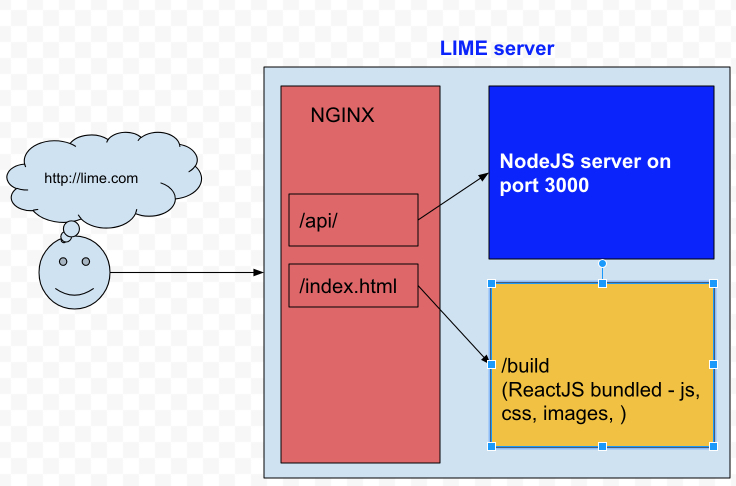
2018-12-05-00-19-12
Client - Server overview

 NodeJS

node version : v10.13.0

npm version : 6.4.1

BackEnd application runs on port 3000

I use PM2 for  process manager for Node.Js http://pm2.keymetrics.io/

ReactJS

React-scripts : 2.1.1 is ReactJS development tool, also help us to bundle javascript, css, images... into a build folder.

NGINX

Version : nginx version: nginx/1.14.0 (Ubuntu) , to find ngnix version
Change  nginx default file: /etc/nginx/sites-enabled/default

1. Add proxy pass for API
location ~ ^/api/ {
   proxy_pass      http://127.0.0.1:3000;
}

to pass all API requests to NodeJS server.

2. Add root static folder
root /home/ubuntu/public_html/lime-fe/build;

To point default static folder to the build folder of react-script.

3. Also it is important to have

location / {
    try_files $uri /index.html;
}
4. Reload nginx sever:
 
# systemctl restart nginx
OR
# sudo systemctl restart nginx
5. Additional setups: - Remove nginx version
server_tokens off;
- Enable Gzip
        ##
        # Gzip Settings
        ##

        gzip on;
        gzip_disable "msie6";

        # gzip_vary on;
        # gzip_proxied any;
        # gzip_comp_level 6;
        # gzip_buffers 16 8k;
        # gzip_http_version 1.1;
        gzip_types text/plain text/css application/json application/javascript text/xml application/xml application/xml+rss text/javascript;


to let reactJS application handles the routing (URLs) instead of nginx.

Full configuration file.


Setup environment variables

~/.bash_profile

Some variables :

export NODE_ENV=production

To reload bash environment, using the command

source ~/.bash_profile

OR
. ~/.bash_profile

Some notes:

1. npm install without devDependencies:

If server setup with production mode on

NODE_ENV=production

, NPM install will ignore devDependencies

We can use npm install --only=dev or set NPM production.

to check if npm is in production mode , we can use the command:

npm config get production

To turn off production mode:

npm config set -g production false

2. pm2 doesn’t reload environment variables:

we need to use --update-env ,
e.g:
 pm2 reload sever --update-env

References

  1. How to install NodeJS and NPM : https://github.com/nodesource/distributions/blob/master/README.md

  2. How to install
    https://www.digitalocean.com/community/tutorials/how-to-install-nginx-on-ubuntu-16-04

  3. How to check Ubuntu version: https://askubuntu.com/questions/686239/how-do-i-check-the-version-of-ubuntu-i-am-running

  4. How to install MongoDB on Ubuntu: https://docs.mongodb.com/v3.2/administration/install-on-linux/